Formulas
Formulas play a significant role in defining the logic and calculations needed for the correct functioning of the software applications being built. Formulas allow the implementation of complex calculations in a simplified, more effective and reliable manner.
It's possible to use Formulas in different places in Genio:
- Defining how to calculate a specific table field;
- Writing table conditions;
- Writing form condition;
- Defining conditions to:
- Show a field;
- Block a field;
- Fill a field.
Formulas on Table Fields
This section explores Genio's various attribute functionalities available within tables, empowering users to manipulate and analyze data more effectively.
To create a Formula, depending on the operation you aim to perform, follow these steps:
- Go to the Data menu and select the table that contains the field for which you want to define a formula
- Select the preferred type of data
- Use the Field value tab to create formulas for special calculations. When you pick some types of formula, a field called Formula will appear. You can click the f(x) button to open the formula builder, which provides templates and descriptions to help you construct your formula.
- Remember to save the data before moving to the next tab to avoid any missing data errors.
1. Last Value Formula
The purpose of this formula is to get the last value of a given field from a related area. Imagine you have an area "Store" and want to have there the last product that was sold in a given store from the area "Sales", with this formula you can do so.
In order to deploy this formula, we must indicate some information about the data we want to save as well as where to fetch it from. After choosing the formula type to "U1 Last Value" and pressing F11, a menu shows up to help you build the formula, as you can see in Figure 1. The first 3 fields are mandatory and the other 2 are optional ones.
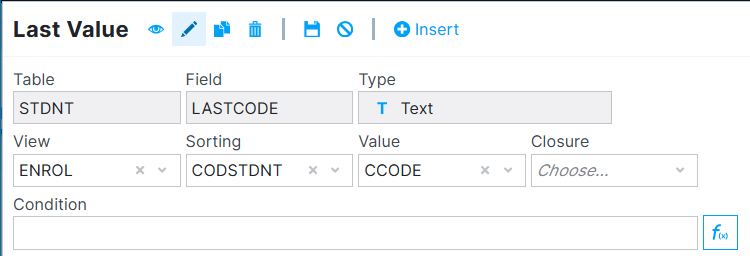
Figure 1: Example of data field insertion using Last Value type of Formula.
Read (mandatory) This is where you indicate the area where you'll be fetching the data from.
Sorting (mandatory) This is where you will indicate the field which will sort the data. This has to be a Date or Datetime, Character or Numeric and it's located on the table where you fetch the data from.
Value (mandatory) As the name suggests, this is where you indicate the field you want to fetch, in other words, it's the last record of this field that will be saved in the last value field.
Closing (optional) Here you can indicate a value (from the higher table) to filter up to which values to get. For example, if you specify a date, "2025/04/10", it will get the latest value up to this date. Please keep in mind that the order field type must be the same as the closing field type, for example, if the order is numeric the closing has to be numeric. In case the closing is "Today", the order must be a date. Instead of indicating a specific date, you can also insert the "Today" value which, as the name suggests, gets the latest value up to today's date. Leaving this field blank will get the latest possible record.
Condition (optional) Here you can indicate a simple condition (cannot use && or || ), that lets you filter the data based on if it's true or false. For example, you want to get the last active record with the name "test", you would write something like the following:
[TST1->NAME]=="test"
Limitations
-
You can only fetch fields from a lower table, for example, table A and table B are related, and A has a secondary key that points to B. You can have the field with the last value formula in B, getting the data from A, but you cannot do the same the other way around.
-
The information on the field containing the formula only gets updated during reindexation, when a record from the lower table (the one where we are fetching the data from) gets updated or if the closing is "Today", it will update every day.
2. Arithmetic
Arithmetic functionality facilitates computational operations involving table attributes. This feature allows users to perform mathematical calculations, such as addition, subtraction, multiplication, and division, on the specified table attributes. By utilizing arithmetic operations, users can derive new values based on existing attribute values, enabling various data transformations and analysis.
In Figure 2 it's possible to see an example of this kind of formula
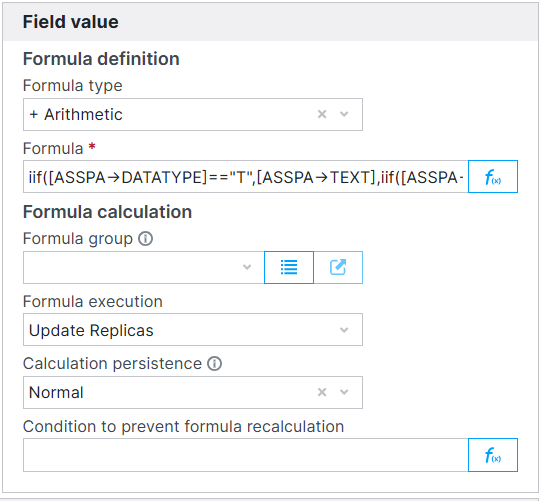
Figure 2: Example of data field insertion using Arithmetic type of Formula.
3. Replica
The replica feature ensures that a specific attribute in one table possesses an identical value to an attribute derived from another related table. This functionality establishes a connection between the two tables, synchronizing the values of the designated attributes. Any changes made to the source attribute in the original table automatically propagate to the replica attribute in the linked table, maintaining consistency and integrity between the related data entities.
In Figure 3 it's possible to see an example of this kind of formula.
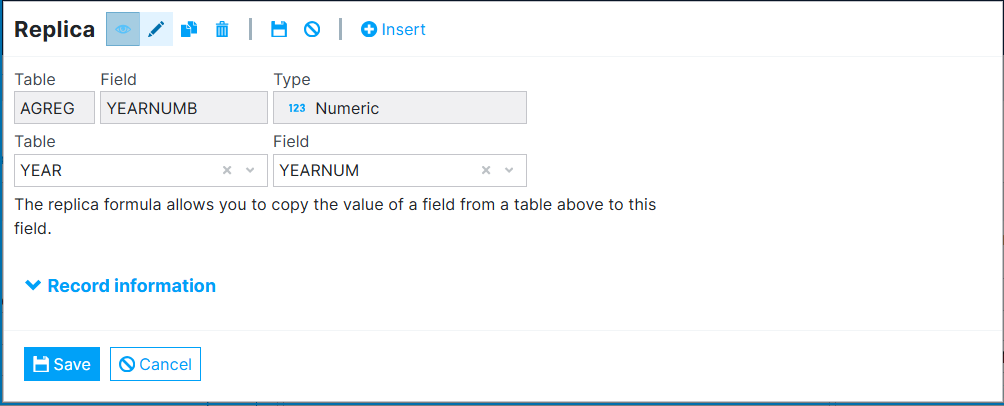
Figure 3: Example of data field insertion using Replica type of Formula.
4. Linked Sum
The linked sum operation calculates the cumulative total of a specific attribute across multiple instances or records in a related table. This functionality is particularly useful for data analysis, summarizing information, and obtaining cumulative insights across linked data entities. The feature works in two main ways:
- Aggregate values in a column: sums all the values in a specified field of a related table (e.g., the total invoice amount by summing all associated lines). The related Table and the Field to be aggregated must be defined, and the field type must be numeric, currency, or logical.
- Count of records: counts the records in a related table (e.g., the number of airports in a country). To enable counting, the related Table must be defined, marked as Count, and a Value specified for each line. While the default value is 1, users can customize it as needed.
In Figure 4 it's possible to see an example of this kind of formula.
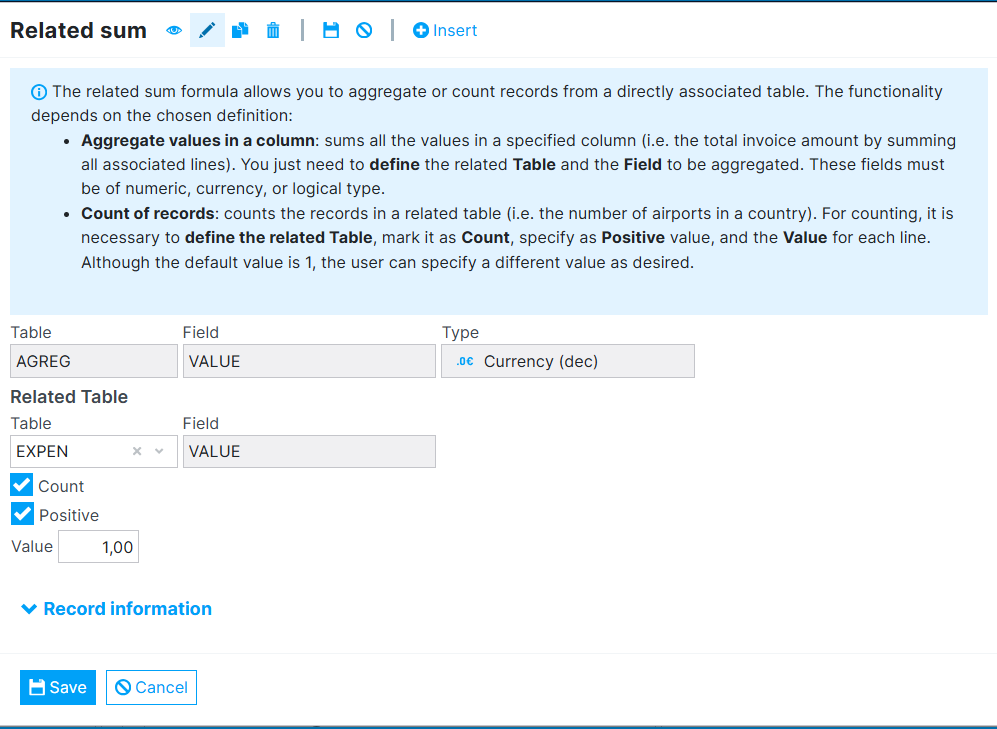
Figure 4: Example of data field insertion using Linked Sum type of Formula.
In this example, by selecting Count the formula should count the number of records.
5. Lookup Formulas
Lookup formulas allow you to fetch values from a table based on specified criteria, such as dates and optional filters. They are commonly used in scenarios where you need to retrieve specific information, such as prices, from a separate table that is unrelated to the current context.
- CT Lookup formula Will return the table price by the date specified.
- CS Lookup formula Returns the price immediately after the specified date.
In Figure 5 it's possible to see an example of this kind of formula.
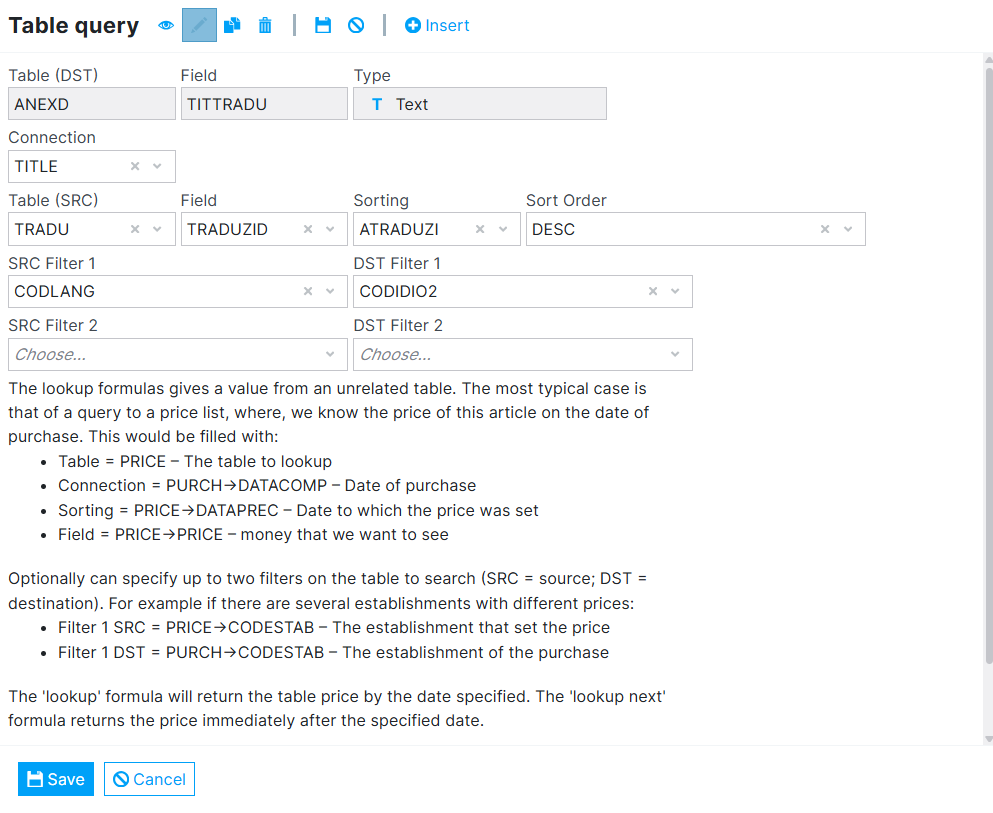
Figure 5: Menu of data field insertion in Genio for Lookup Formula.
The goal is to find the price of an article on a specific date of purchase.
Read: Refers to the table that needs to be looked up.
Link: Specifies the connection between the current context and the table being looked up.
Sorting: Specifies the order or arrangement of the data in the lookup table.
Value: Refers to the specific value we want to retrieve from the lookup table.
Optional Filters: Additional criteria that can be applied to narrow down the search in the lookup table.
6. Concatenate rows
The formula Concatenate rows is used to concatenate or merge text from a specific field within a related table.
View: This parameter refers to the table that is being queried or searched.
Value: This parameter specifies the field within the table that contains the text values to be concatenated.
Sorting: This parameter relates to the field within the table that dictates the order in which the fields will be read and concatenated.
Separator: The separator parameter defines the text that will serve as a delimiter between the concatenated fields.
To utilize the formula effectively, you would provide the relevant query table, the specific value field containing the text to be concatenated, the ordering field dictating the concatenation sequence, and the desired separator text to be inserted between the combined fields.
Logical operators
== : Equal-to operator. Used to compare the values of two operands to check if they are equal. Returns a "boolean" value, True if both operands are equal and False otherwise.
!= : Not-equal-to operator. Used to compare the values of two operands to check if they are not equal. Returns a "boolean" value, True if the operands are not equal and False if they are.
> : Greater-than operator. Used to compare the values of two operands to check if the value of the left operand is greater than the value of the right operand. Returns a "boolean" value, True if the value of the left operand is greater than the value of the right operand and False otherwise.
< : Less-than operator. Used to compare the values of two operands to check if the value of the right operand is greater than the value of the left operand. Returns a "boolean" value, True if the value of the right operand is greater than the value of the left operand and False otherwise.
>= : Greater-than-or-equal-to operator. Used to compare the values of two operands to check if the value of the left operand is greater than or equal to the value of the right operand. Returns a "boolean" value, True if the value of the left operand is greater than or equal to the value of the right operand and False otherwise.
<= : Less-than-or-equal-to operator. Used to compare the values of two operands to check if the value of the left operand is less than or equal to the value of the right operand. Returns a "boolean" value, True if the value of the left operand is less than or equal to the value of the right operand and False otherwise.
Functions and Examples
iif() function
This function takes in 3 parameters, it should be called like so : iif(1., 2., 3.).
- A certain condition returning a "boolean" value, so either True or False. For example using the "==" operator to compare the value of two different fields.
- The instruction that will be executed if the outcome of the condition is True.
- The instruction that will be executed if the outcome of the condition is False.
Here is an example of using the iif() function : iif([ITEM->Stock] == 0, RGB(255,0,0), RGB(0,255,0))
- [ITEM->Stock] == 0: [ITEM->Stock] is a field that manages the stock of an item for example. When it equals 0, this condition will return True, otherwise it will return False.
- RGB(255,0,0): What will be executed if the condition is True.
- RGB(0,255,0): What will be executed if the condition is False.
(In this example, if the field [ITEM->Stock] is equal to 0, wherever this function iif() was called, a row for example, will be colored in red, and in green otherwise.)
isEmptyX() functions
The isEmptyX() functions test for empty or null values. It returns a "boolean", True if the argument given to the function is empty or null and False otherwise. This function takes in 1 parameter, it should be called like so : isEmptyX(1.).
- A field where checking if it is empty makes sense.
Note: The 'X' has to be replaced by 'C' (Text value), 'D' (Date value), 'G' (Key value), 'L' (Boolean value), 'N' (Numeric value) or 'T' (Time value) based on the data type of the field that is being tested.
Note: adding '!' before the isEmptyX() function like so : !isEmptyX() will instead check if the field given as an argument is not empty. Returning True if it is not empty and False if it is.
Here is an example of using the isEmptyX() function : iif(isEmptyC([PERSON->Name]), "No Name", [PERSON->Name])
- isEmptyC([PERSON->Name]): will check if the field [PERSON->Name] is empty. Return True if it is, False if it is not.
- "No Name": If the condition returns True, the iif() function will return "No Name".
- [PERSON->Name]: If the condition is False, the iif() function will return the existing value in the [PERSON->Name] field.
Note: These functions can be used in conditional expressions. Just like we've seen with the EMPTY() function used as a parameter of the iif() function, the iif() function can be used as a parameter of an iif() function.
Genio Base Formulas Description
Table 1 - Date Comparison Functions
| Function Signature | Detailed Description | Return Type | Example |
|---|---|---|---|
ComparaDatas(Date t1, Date t2) |
Compares two dates and returns an integer indicating the relationship between them. Returned value: Less than zero - t1 is earlier than t2; Zero - t1 is the same as t2; Greater than zero - t1 is later than t2. |
Numeric | ComparaDatas([TABEL->DATA],[TABEL->DATAFIM]) |
DateCompare(Date t1, Date t2) |
Similar to ComparaDatas, compares two dates and returns an integer indicating their relationship. Returned value: Less than zero - t1 is earlier than t2; Zero - t1 is the same as t2; Greater than zero - t1 is later than t2. |
Numeric | DateCompare([TABEL->DATA],[NOW]) |
Table 2 - Date Creation Functions
| Function Signature | Detailed Description | Return Type | Example |
|---|---|---|---|
CreateDate(Numeric year, Numeric month, Numeric day) |
Creates a date from year, month, and day components. | Date | CreateDate(2022,01,31) |
CreateDateTime(Numeric year, Numeric month, Numeric day, Numeric hour, Numeric minute, Numeric second) |
Creates a date with time included. | DateTime | CreateDateTime(2022,01,31,08,30,0) |
CreateDuration(Numeric days, Numeric hours, Numeric minutes, Numeric seconds) |
Creates a duration or timespan from its components. | Duration | CreateDuration(0,0,30,0) |
Table 3 - Date Addition Functions
| Function Signature | Detailed Description | Return Type | Example |
|---|---|---|---|
DateAddDuration(Date date, Duration duration) |
Adds a duration to a date. | Date | DateAddDuration([TABLE->DT],CreateDuration(0,0,30,0)) |
DateAddHours(Date date, Numeric hours) |
Adds a specified number of hours to a date. | Date | DateAddHours([TABLE->DT],2) |
DateAddMinutes(Date date, Numeric minutes) |
Adds a specified number of minutes to a date. | Date | DateAddMinutes([TABLE->DT],3) |
DateAddSeconds(Date date, Numeric seconds) |
Adds a specified number of seconds to a date. | Date | DateAddSeconds([TABLE->DT],30) |
DateAddDays(Date date, Numeric days) |
Adds a specified number of days to a date. | Date | DateAddDays([TABLE->DT],1) |
DateAddMonths(Date date, Numeric months) |
Adds a specified number of months to a date. | Date | DateAddMonths([TABLE->DT],4) |
DateAddYears(Date date, Numeric years) |
Adds a specified number of years to a date. | Date | DateAddYears([TABLE->DT],10) |
Table 4 - Date Difference Functions
| Function Signature | Detailed Description | Return Type | Example |
|---|---|---|---|
DateDiff(Date startDate, Date endDate) |
Calculates the duration between the start and end dates. | Duration | DateDiff([TABLE->DT],[Today]) |
DateDiffPart(Date startDate, Date endDate, Text unit) |
Calculates the duration between the start and end dates and returns the difference in the specified unit. Parameter unit can be D (days), H (hours), M (months), or S (seconds). | Duration | DateDiffPart([TABLE->DT],[Today],"D") |
Table 5 - Date Manipulation Functions
| Function Signature | Detailed Description | Return Type | Example |
|---|---|---|---|
DateFloorDay(Date date) |
Truncates the time part of a datetime value. | Date | DateFloorDay([TABEL->DATA]) |
DateGetDay(Date date) |
Gets the day of the month from the date. | Numeric | DateGetDay([TABEL->DATA]) |
DateGetMonth(Date date) |
Gets the month of the year from the date. | Numeric | DateGetMonth([TABEL->DATA]) |
DateGetYear(Date date) |
Gets the year from the date. | Numeric | DateGetYear([TABEL->DATA]) |
Table 6 - Time Retrieval Functions
| Function Signature | Detailed Description | Return Type |
|---|---|---|
DateGetHour(Date date) |
Gets the hour of the day from the date. | Numeric |
DateGetMinute(Date date) |
Gets the minute of the hour from the date. | Numeric |
DateGetSecond(Date date) |
Gets the second of the minute from the date. | Numeric |
Table 7 - Date and Time Setting Functions
| Function Signature | Detailed Description | Return Type | Example |
|---|---|---|---|
DateSetTime(Date date, Text time) |
Sets a specific time on a date. | Date | DateSetTime([TABLE->DATE],[TABLE->TIME]) |
DateSubtractDuration(Date date, Duration duration) |
Subtracts a duration from a date. | Date | DateSubtractDuration([TABLE->DT], CreateDuration(0,0,30,0)) |
Table 8 - Day Component Functions
| Function Signature | Detailed Description | Return Type | Example |
|---|---|---|---|
Day(Date date) |
Retrieves the day component of the date. | Numeric | Day([TABAC->DATA]) |
DoubleToHoras(Numeric value) |
Converts the number of hours elapsed from 00:00 to a string representing the time. | Text | DoubleToHoras([TABEL->NUM]) |
Table 9 - Duration Functions
| Function Signature | Detailed Description | Return Type | Example |
|---|---|---|---|
DurationTotalDays(Duration duration) |
Gets the total days in the duration. | Numeric | DurationTotalDays(CreateDuration(1,24,0,0)) |
DurationTotalHours(Duration duration) |
Gets the total hours in the duration. | Numeric | DurationTotalHours(CreateDuration(1,24,0,0)) |
DurationTotalMinutes(Duration duration) |
Gets the total minutes in the duration. | Numeric | - |
DurationTotalSeconds(Duration duration) |
Gets the total seconds in the duration. | Numeric | - |
Table 10 - Miscellaneous Functions
| Function Signature | Detailed Description | Return Type | Example |
|---|---|---|---|
GUIDCreate() |
Generates a new GUID. | Text | GUIDCreate() |
GetAppThemeVariable(Text variable) |
Retrieves the variable of the current app. | Text | GetAppThemeVariable("$primary") |
GetEph(Text ephID) |
Retrieves the first value of a certain EPH. ephID is the EPH identifier. |
Key | GetEph("EMPLOYEE") |
GetLevelFromRole(Numeric level, Text roleId) |
Retrieves the corresponding access level for roles of type "Level". Returns 0 otherwise. | Numeric | - |
Table 11 - Color Functions
| Function Signature | Detailed Description | Return Type | Example |
|---|---|---|---|
HEXCOLOUR(Text Hex) |
Returns an RGB color value based on the provided hex code. The hashtag (#) should not be part of the code. | RGB | HEXCOLOUR("A0FF03") |
NCOLOUR(Text colour_name) |
Returns an RGB color value based on the name of the color. | RGB | NCOLOUR("WHITE") |
RGB(Numeric Red, Numeric Green, Numeric Blue) |
Returns an RGB color value based on the RGB components. | RGB | RGB(255,255,0) |
Table 12 - String Manipulation Functions
| Function Signature | Detailed Description | Return Type | Example |
|---|---|---|---|
LEFT(Text value, Numeric length) |
Retrieves the left substring from a string, based on the specified length. | Text | LEFT([TABEL->NAME],4) |
LTRIM(Text value) |
Removes all white-space characters at the beginning of the string. | Text | LTRIM([TABEL->NAME]) |
LengthString(Text value) |
Gets the number of characters in the string. | Numeric | LengthString([TABEL->NAME]) |
RIGHT(Text value, Numeric length) |
Retrieves the right substring from a string, based on the specified length. | Text | RIGHT([TABEL->NAME],4) |
RTRIM(Text value) |
Removes all white-space characters at the end of the string. | Text | RTRIM([TABEL->NAME]) |
SubString(Text value, Numeric startIndex, Numeric length) |
Retrieves a substring from a string, starting at a specified index and with a specified length. | Text | - |
Table 13 - Date Component Functions
| Function Signature | Detailed Description | Return Type | Example |
|---|---|---|---|
Month(Date value) |
Retrieves the month component of the date. | Numeric | Month([TABAC->DATA]) |
Year(Date value) |
Retrieves the year component of the date. | Numeric | - |
Table 14 - Comparison and Validation Functions
| Function Signature | Detailed Description | Return Type | Example |
|---|---|---|---|
emptyC(Text value) |
Checks if the specified string is null or empty. Returns 1 if true, 0 otherwise. | Numeric | - |
emptyD(Date value) |
Checks if the specified date is null or empty. Returns 1 if true, 0 otherwise. | Numeric | - |
emptyG(Key value) |
Checks if the specified key (GUID) is null or empty. Returns 1 if true, 0 otherwise. | Numeric | - |
emptyL(Logic value) |
Checks if the specified boolean (Logic) is null or false. Returns 1 if true, 0 otherwise. | Numeric | - |
emptyN(Numeric value) |
Checks if the specified number is null or zero. Returns 1 if true, 0 otherwise. | Numeric | - |
emptyT(Text value) |
Checks if the specified time is null or empty. Returns 1 if true, 0 otherwise. | Numeric | - |
Table 15 - Conversion Functions
| Function Signature | Detailed Description | Return Type | Example |
|---|---|---|---|
atoi(Text value) |
Converts the string representation of a number to its 32-bit signed integer equivalent. | Numeric | - |
IntToString(Numeric value) |
Converts a numeric value to its string representation. | Text | IntToString([TABEL->NUM]) |
NumericToString(Numeric value, Numeric digits) |
Converts a numeric value to its string representation with specified number of fractional digits. | Text | NumericToString([TABEL->NUM],2) |
StringToInt(Text value) |
Converts the string representation of a number to its 32-bit signed integer equivalent. | Numeric | - |
Table 16 - Mathematical Functions
| Function Signature | Detailed Description | Return Type | Example |
|---|---|---|---|
abs(Numeric value) |
Returns the absolute value of a given number. | Numeric | - |
floor(Numeric value) |
Returns the largest integer less than or equal to the specified number. | Numeric | - |
sqrt(Numeric value) |
Returns the square root of a specified number. | Numeric | - |
Round(Numeric value, Numeric digits) |
Rounds a number to a specified number of fractional digits. | Numeric | - |
RoundQG(Numeric value, Numeric digits) |
Rounds a number to a specified number of fractional digits with a clearance of 0.001. | Numeric | - |
Table 17 - Deprecated Functions
| Function Signature | Detailed Description | Return Type | Example |
|---|---|---|---|
Agora |
Deprecated: Use [Now] instead. |
- | - |
Ano |
Deprecated: Use [DbYear] instead. |
- | - |
CriaData |
Deprecated: Use CreateDateTime instead. |
- | - |
CriaDataHora |
Deprecated: Use DateSetTime instead. |
- | - |
GetCurrentDay |
Deprecated: Use [Today] instead. |
- | |
GetCurrentMonth |
Deprecated: Use Month([Today]) instead. |
- | - |
GetCurrentYear |
Deprecated: Use Year([Today]) instead. |
- | - |
Hoje |
Deprecated: Use [Today] instead. |
- | |
isValid |
Deprecated: Use !emptyD instead. |
- | |
Sigla |
Deprecated: Use [ClientId] instead. |
- | |
[Year] |
Deprecated: Use [DbYear] instead |
- |
Table 18 - Special Variables
| Function Signature | Detailed Description | Return Type | Example |
|---|---|---|---|
[ClientId] |
Returns the client initials. | Text | - |
[DbYear] |
Returns the year of the current database. | Numeric | - |
[False] |
Returns a Boolean value of false. | Boolean | - |
[FormMode] |
Returns the mode that the form is opened in. | Text | - |
[Module] |
Returns the module initials. | Text | - |
[Now] |
Returns the current date and time. | Date | - |
[Today] |
Returns the current date. | Date | - |
[True] |
Returns a Boolean value of true. | Boolean | - |
[Username] |
Returns the username of the current user. | Text | - |