Secrets Providers
Generated applications keep several credentials in their configuration file (Configuracoes.xml): database logins, e-mail servers, SSRS, messaging, the machine key, OAuth2 client secrets, password-type extra properties, and so on. By default these values are stored inline in base64. Base64 is an encoding, not encryption, so anyone who can read the file can read every password, and its protection relies entirely on the file system permissions.
A Secrets Provider is an external service dedicated to storing secrets, with its own access control, auditing and rotation. Webadmin can be configured to keep the configuration secrets in a secrets provider instead of the configuration file. The configuration file then only keeps a reference to each secret, such as vault:QUIDVUE/datasystem/2024/password, and the real value is read from the provider when the application needs it.
There are three types of secrets providers: Legacy, HashiCorp Vault and Azure Key Vault. By default, the provider is Legacy, so installations that don't configure a provider keep working exactly as before.
The way administrators enter passwords does not change. Passwords entered anywhere in Webadmin (data systems, e-mail servers, Elasticsearch, messaging, extra properties, ...) are written to the selected provider when the configuration is saved.
WebAdmin configuration
The secrets provider is configured in System Setup > System, in the Secrets provider card.
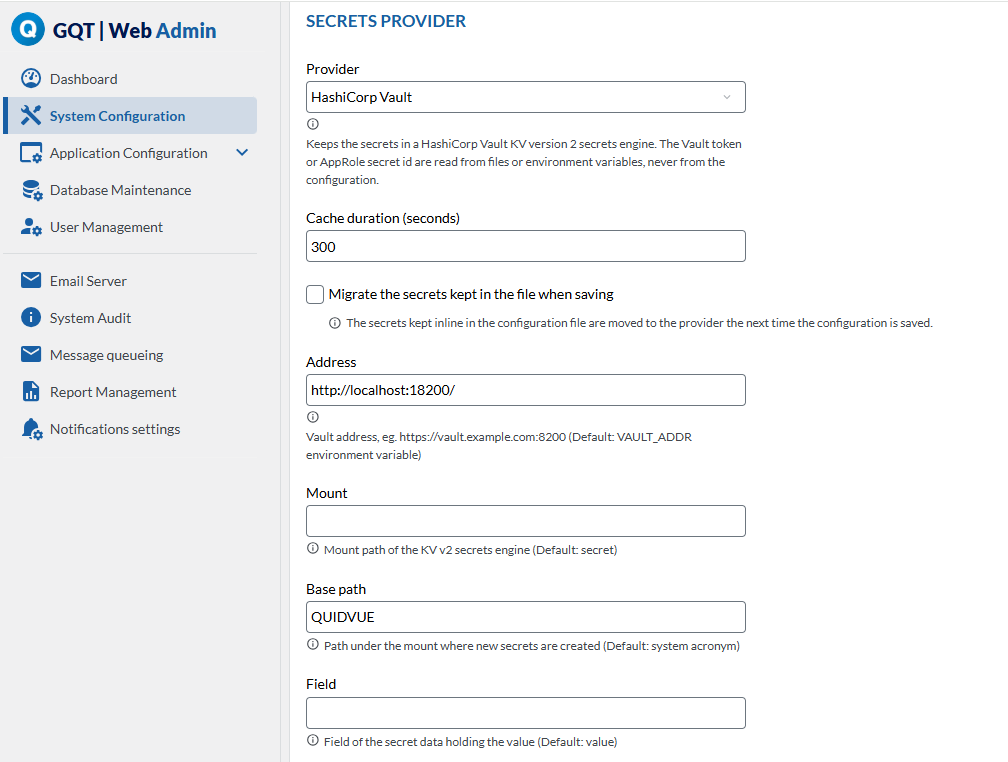
- Choose the Provider where the secrets are kept. A short description of the selected provider is shown below the field.
- Fill in the options of the provider. Each option shows its description and, when it has one, its default value. Options left empty use the default value. Required options are validated before saving.
- Set the Cache duration (seconds). Resolved secrets are kept in memory for this time, so the provider isn't called on every request. The default is 300 seconds. Use 0 to disable the cache.
- Check Migrate the secrets kept in the file when saving to move the existing inline passwords into the provider (see Migrating existing secrets).
- Save the configuration.
Saving is all-or-nothing. The secrets are written to the provider before the configuration file, so if the provider is unreachable or rejects a write, the configuration file is left untouched and the error is shown with its details.
The credentials used to access the provider itself (tokens, AppRole secret ids, ...) are never kept in the configuration file. They are read from files, environment variables or the ambient identity of the server, as described for each provider below.
NOTE: Both the application and Webadmin read the same configuration file, so both need access to the provider. Make sure the environment variables, files or identity are available to every process that uses the configuration, including AdminCLI.
Legacy
The default provider. The secrets are kept inline in the configuration file itself, encoded in base64. It has no options.
This is the behaviour of every installation that doesn't configure a provider.
HashiCorp Vault
HashiCorp Vault is a widely used tool to store and control access to secrets. Webadmin uses its KV version 2 secrets engine over its HTTP API.
Each secret is kept in a path of the engine, with the value in a single field (by default value). New secrets are created under a base path, by default the system acronym, for example QUIDVUE/datasystem/2024/password.
To prepare the vault:
- Enable a KV version 2 secrets engine, or use an existing one (the default
secretmount of a Vault server is already KV version 2).vault secrets enable -path=secret kv-v2
- Create a policy that allows the application to manage the secrets under its base path. For a read-only setup (see Read-only mode) give only the
readcapability.path "secret/data/QUIDVUE/*" { capabilities = ["create", "read", "update"] } - Choose how the application authenticates to Vault:
- Token - Create a token with the policy, and make it available in the
VAULT_TOKENenvironment variable or in a file set in the Token file option. - AppRole - Enable the AppRole authentication method, create a role with the policy, and get its role id and a secret id. The role id goes in the AppRole role id option, and the secret id in the
VAULT_SECRET_IDenvironment variable or in a file set in the AppRole secret id file option. AppRole is recommended for production, since the application logs in again by itself when its token expires.
- Token - Create a token with the policy, and make it available in the
WebAdmin configuration:
- Address - Vault address, eg.
https://vault.example.com:8200. Defaults to theVAULT_ADDRenvironment variable. Either one is required. - Mount - Mount path of the KV v2 secrets engine. Defaults to
secret. - Base path - Path under the mount where new secrets are created. Defaults to the system acronym.
- Field - Field of the secret data holding the value. Defaults to
value. - Namespace - Vault Enterprise namespace. Defaults to the
VAULT_NAMESPACEenvironment variable. - Authentication method -
token(default) orapprole. - Token file - File with the Vault token, used by the token authentication method. Defaults to the
VAULT_TOKENenvironment variable. - AppRole role id - AppRole role id, required by the approle authentication method.
- AppRole secret id file - File with the AppRole secret id, used by the approle authentication method. Defaults to the
VAULT_SECRET_IDenvironment variable. - AppRole mount - Mount path of the AppRole authentication method. Defaults to
approle. - Timeout (seconds) - Timeout of the requests to Vault. Defaults to 15.
- Read only - Prevents writes to the vault (see Read-only mode).
References to this provider have the form vault:<path>, relative to the mount. A secret can be checked with the Vault CLI, for example:
vault kv get -mount=secret QUIDVUE/datasystem/2024/passwordFor testing it's recommended to use a Vault development server (vault server -dev), which already has a KV v2 engine mounted in secret and prints a root token on startup.
Azure Key Vault
Azure Key Vault is the Microsoft Azure cloud service for storing secrets, keys and certificates.
Authentication uses the ambient Azure identity of the server (managed identity, environment variables, workload identity, Azure CLI, ...), through DefaultAzureCredential. No credentials are kept in the configuration.
Key Vault names only allow letters, digits and dashes, so the names of new secrets join a prefix and the parts of the identifier with -, for example QUIDVUE-datasystem-2024-password. The prefix defaults to the system acronym.
To prepare the vault:
- Sign in to the Azure portal and create a Key Vault, or use an existing one. Use the Azure role-based access control permission model.
- Choose the identity the application runs with. In Azure (App Service, Virtual Machines, AKS, ...) enable a managed identity on the resource. Outside Azure, register an application in Microsoft Entra and set the
AZURE_TENANT_ID,AZURE_CLIENT_IDandAZURE_CLIENT_SECRETenvironment variables on the server. - In the Key Vault, go to Access control (IAM) and assign a role to that identity:
- Key Vault Secrets Officer - to read and write secrets.
- Key Vault Secrets User - to only read secrets (see Read-only mode).
- Copy the Vault URI from the Overview section of the Key Vault.
WebAdmin configuration:
- Vault URI - (required) The vault URI, eg.
https://myvault.vault.azure.net/ - Secret prefix - Prefix for the names of new secrets. Defaults to the system acronym.
- Tenant id - Tenant used to authenticate.
- Managed identity client id - Client id of a user assigned managed identity. Leave blank for a system assigned identity.
- Read only - Prevents writes to the vault (see Read-only mode).
References to this provider have the form akv:<name>, or akv:<name>/<version> to pin a specific version of the secret. Saving a new value always creates a new version and references the latest one.
NOTE: The Azure Key Vault provider is experimental.
Migrating existing secrets
When an external provider is selected, the option Migrate the secrets kept in the file when saving moves the passwords currently kept inline in the configuration file into the provider the next time the configuration is saved. This way an installation can adopt a vault without retyping every credential. After saving, the configuration file only holds references.
If the option is not checked, the old inline values and the new references coexist in the same file, and both keep working. Only the passwords changed from then on are written to the provider.
Switching provider
When the provider is changed from an external one to another (for example from HashiCorp Vault to Azure Key Vault, or back to Legacy), Webadmin shows the option Move the secrets of the previous provider to the new one, checked by default.
When saving, the secrets are read from the previous provider and written to the new one (or inline in the file, when switching to Legacy). The previous provider must be reachable while saving. If any read or write fails, the configuration file is left untouched.
If the option is unchecked, a warning explains that the secrets referenced in the previous provider will no longer be resolved after this change. Those passwords will then have to be entered again.
NOTE: Secrets are never deleted from a provider. Secrets that are no longer referenced, after switching provider or replacing a data system, stay in the vault and can be removed by its administrators.
Read-only mode
Both external providers have a Read only option, so the application can use a vault identity without write permissions. This is useful when the operations team manages the secrets and the application must not change them.
In read-only mode Webadmin can't save a new password. The secrets must be created in the vault by its administrators, and the references written in the configuration file by hand. When a password is changed in Webadmin, the save fails and the error tells exactly which secret must be created and which reference is expected in the configuration.
The secrets are named after the following identifiers, under the base path (HashiCorp Vault) or with the prefix (Azure Key Vault):
| Identifier | Secret |
|---|---|
datasystem/<name>/login and datasystem/<name>/password |
Data system credentials |
datasystem/<name>/log/login and datasystem/<name>/log/password |
Log database credentials of a data system |
auxsystem/<name>/login and auxsystem/<name>/password |
Auxiliary system credentials |
ssrs/username and ssrs/password |
Reporting Services credentials |
security/<application>/machinekey |
Machine key of an application |
chatbot/<application>/jwtkey |
Chatbot JWT key of an application |
elasticsearch/<core>/password |
Elasticsearch password |
email/<id>/password |
E-mail server password |
email/<id>/oauth2/clientsecret and email/<id>/oauth2/thumbprint |
E-mail server OAuth2 credentials |
messaging/host/username and messaging/host/password |
Messaging credentials |
property/<name> |
Password-type extra property |
For example, the password of data system 2024 of system QUIDVUE is kept in QUIDVUE/datasystem/2024/password in HashiCorp Vault (reference vault:QUIDVUE/datasystem/2024/password), or in QUIDVUE-datasystem-2024-password in Azure Key Vault (reference akv:QUIDVUE-datasystem-2024-password).
Cache and availability
Resolved secrets are kept in memory for the configured cache duration, so the provider isn't called on every request.
If the provider becomes unavailable when a cached secret expires, the last known value is served for up to 30 seconds while the vault recovers, and a warning is logged. A short outage of the vault therefore does not immediately take the application down. Longer outages make the operations that need a secret fail, for example the database connection, and the dashboard of Webadmin shows the error returned by the provider.
Passwords in Webadmin
Stored passwords are not sent back to the browser. In the Elasticsearch and messaging settings, leaving the password field empty keeps the current password.
Creating a new data system, either for a new year or by copying the default one, gives it its own copy of the credentials in the provider, so changing the password of one data system doesn't affect the other.
AdminCLI
The AdminCLI commands use the configured provider:
dbconfig-readshows the decoded login and password of the data systems, read from the provider.config getmasks the value of password-type extra properties.config setstores the value of password-type extra properties in the provider.
Manual code
Manual code in client applications that decodes the configuration passwords by hand (for example with Convert.FromBase64String) keeps working with the Legacy provider, but fails once an external provider is configured, because a reference isn't base64. It must use the configuration accessors instead, such as PasswordDecode(), LoginDecode(), SetPassword() or GetPropertySecret(), which resolve both inline values and references.
More details about the design, the formats and how to add new secret fields or providers can be found in CSGenio.core/config/secrets/Design-secrets-provider.md, included in every generated application.